
1
Install AuthSec Authenticator and sign in
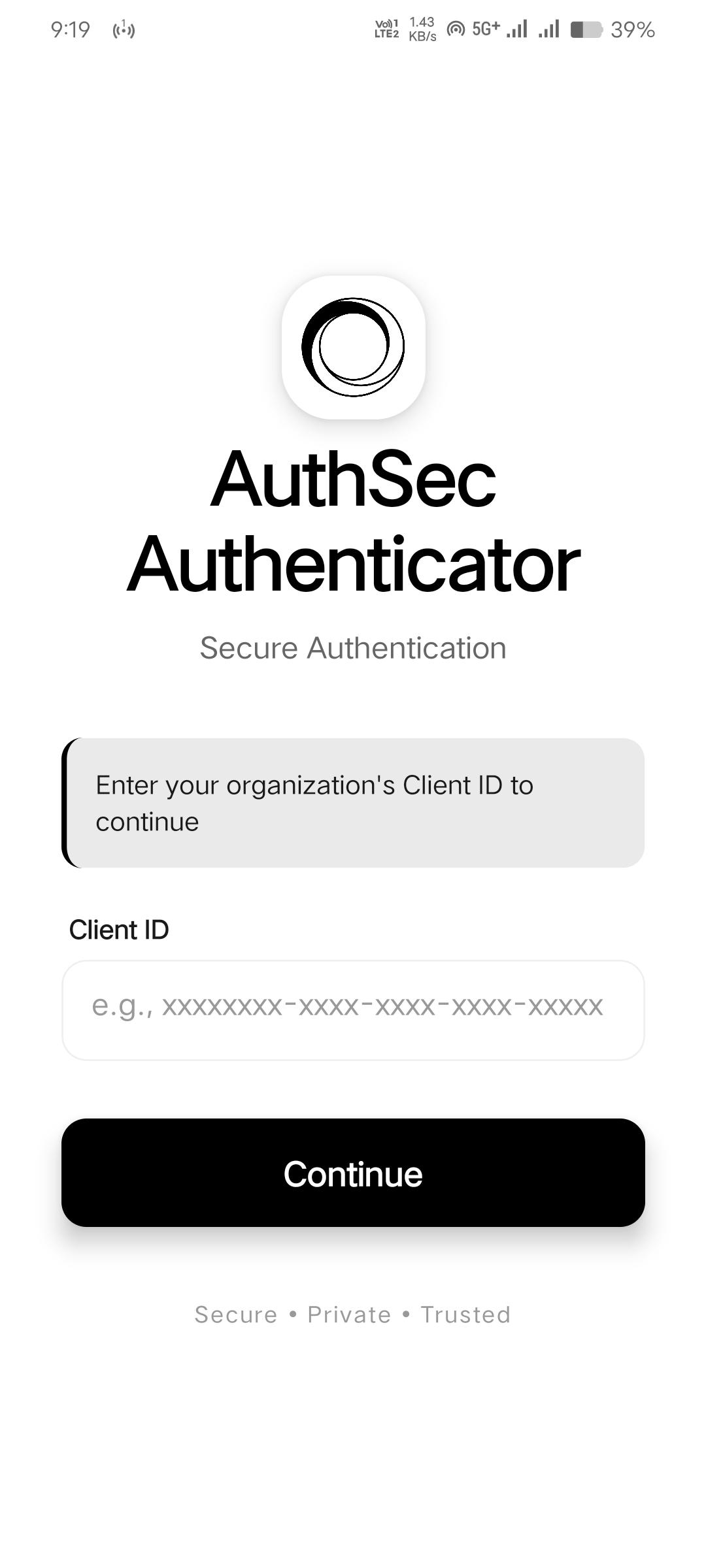
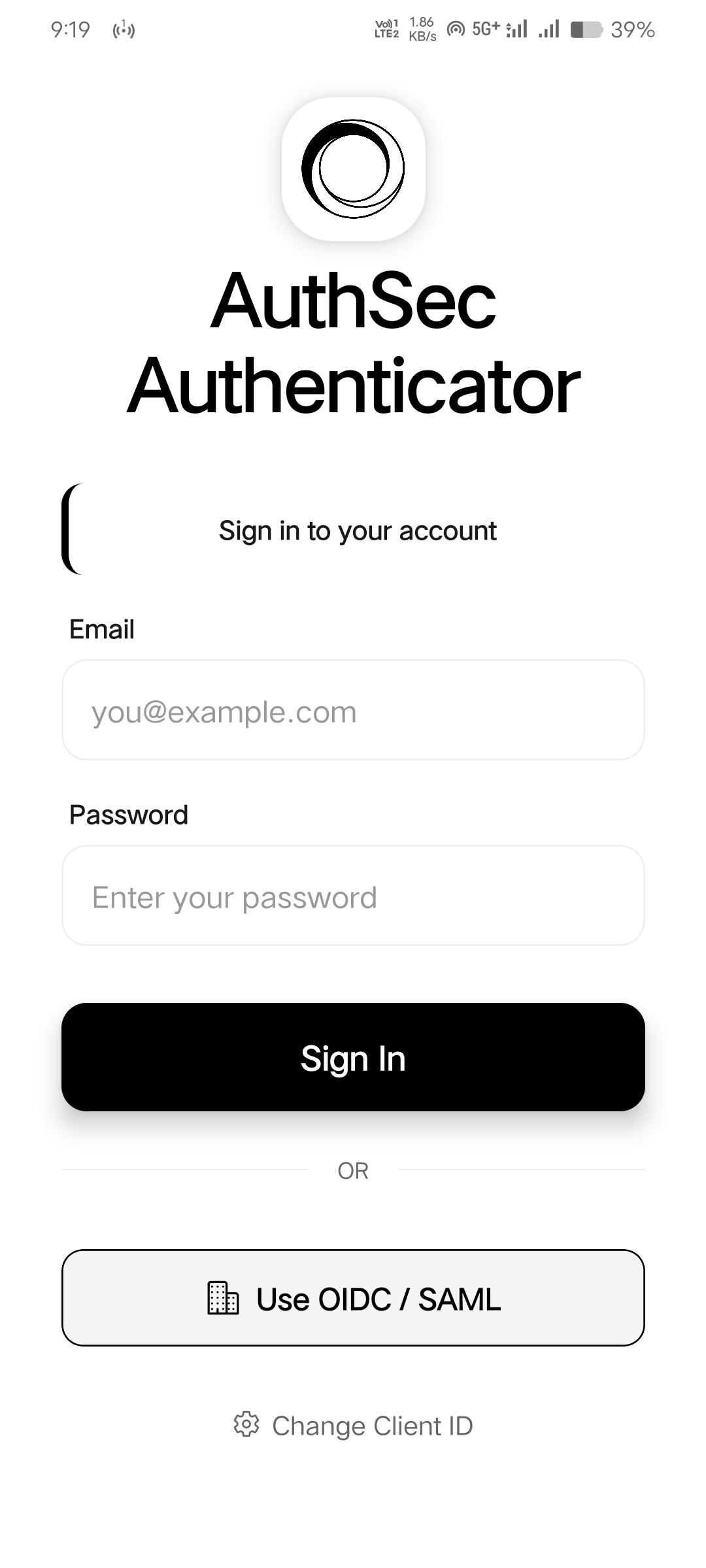
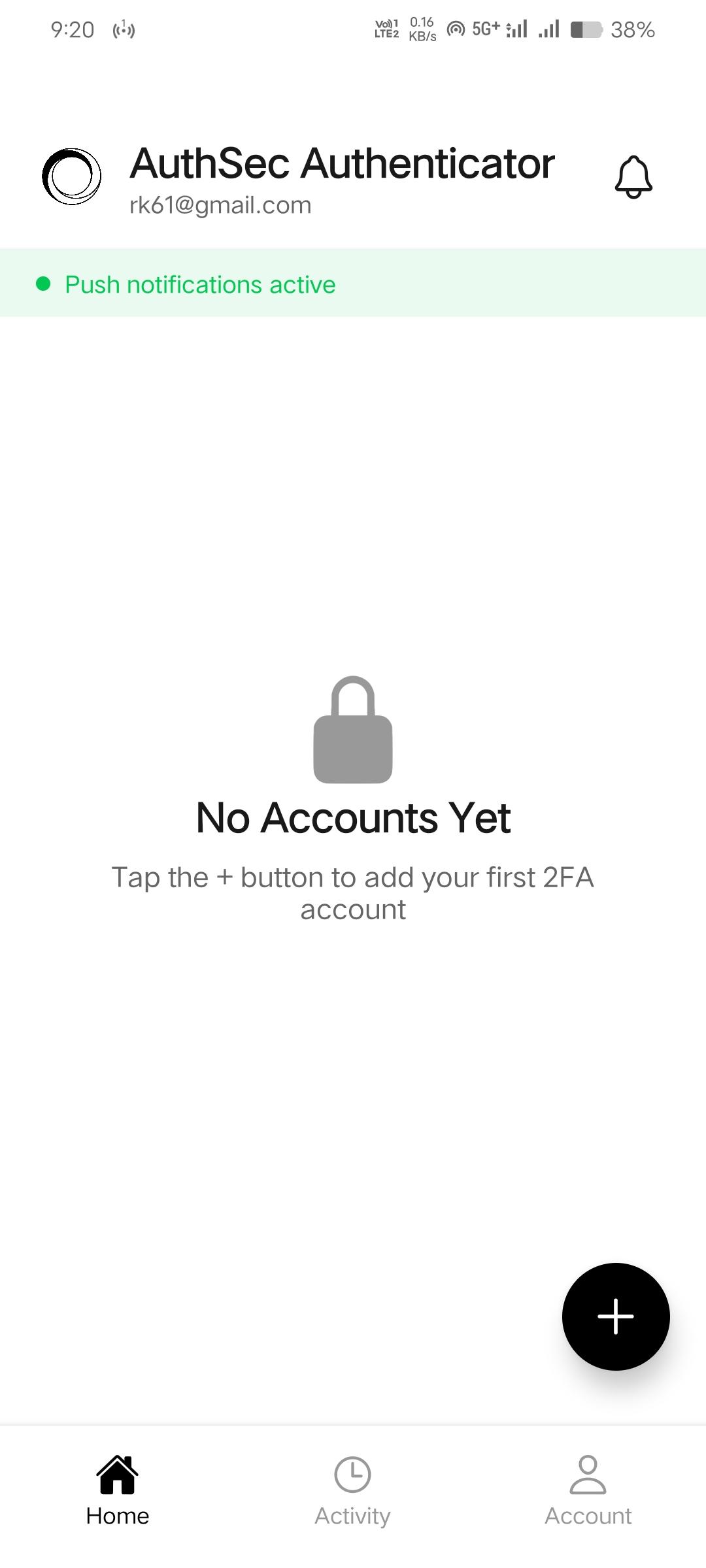
Download AuthSec Authenticator and proceed with sign in using the Client ID provided to you. You can register your email using OIDC/SAML via Open Browser inside the app.
MCP Playground Pro
Follow these guided steps to test voice authentication using AuthSec Authenticator and the AuthSec AI Agent playground.
MCP Playground Voice Agent
Open MCP Playground ProDownload AuthSec Authenticator and proceed with sign in using the Client ID provided to you. You can register your email using OIDC/SAML via Open Browser inside the app.
Log in to the playground using your email and Client ID: https://app.authsec.ai/pl/voice-agent
Open MCP Playground Pro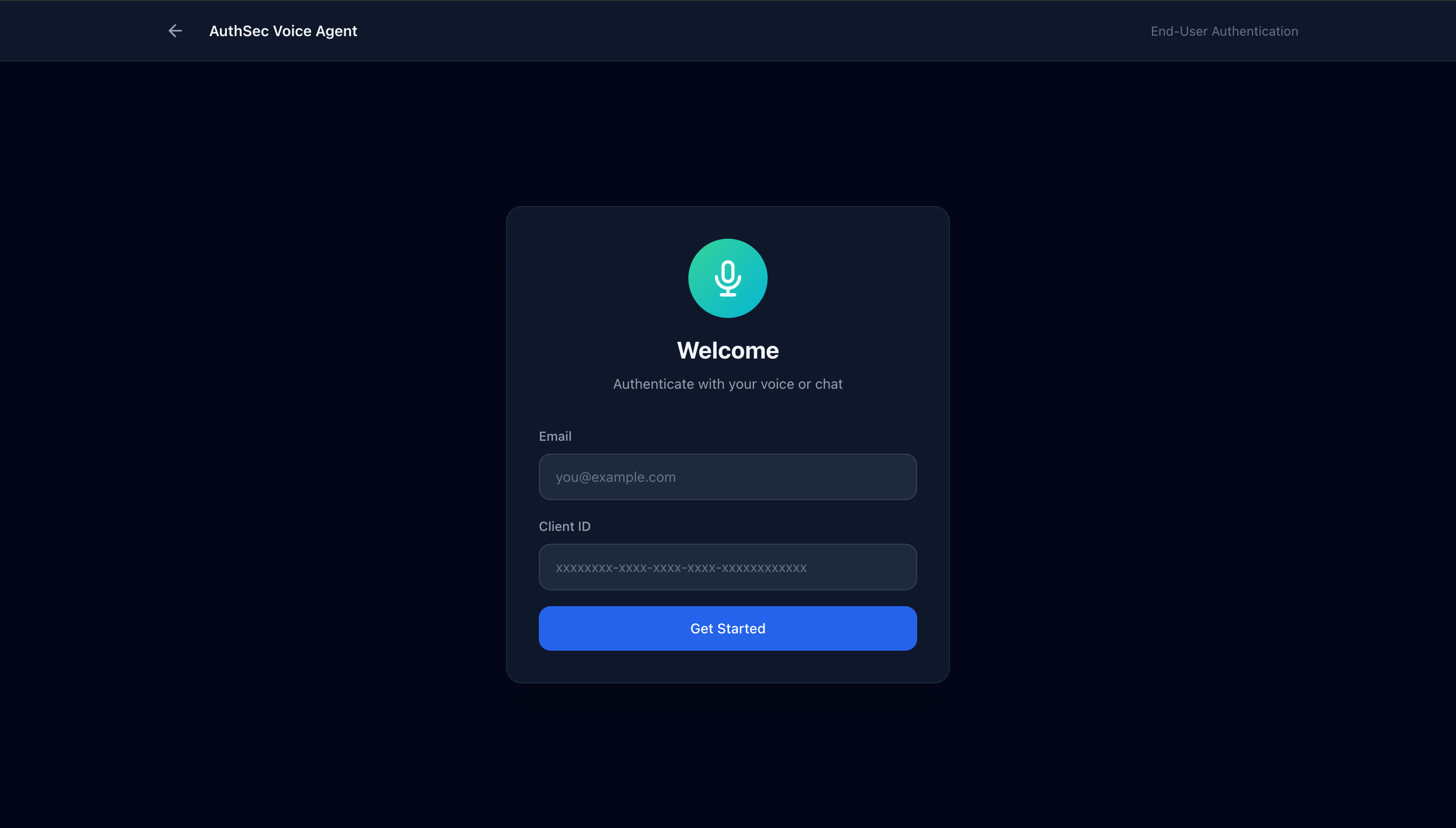
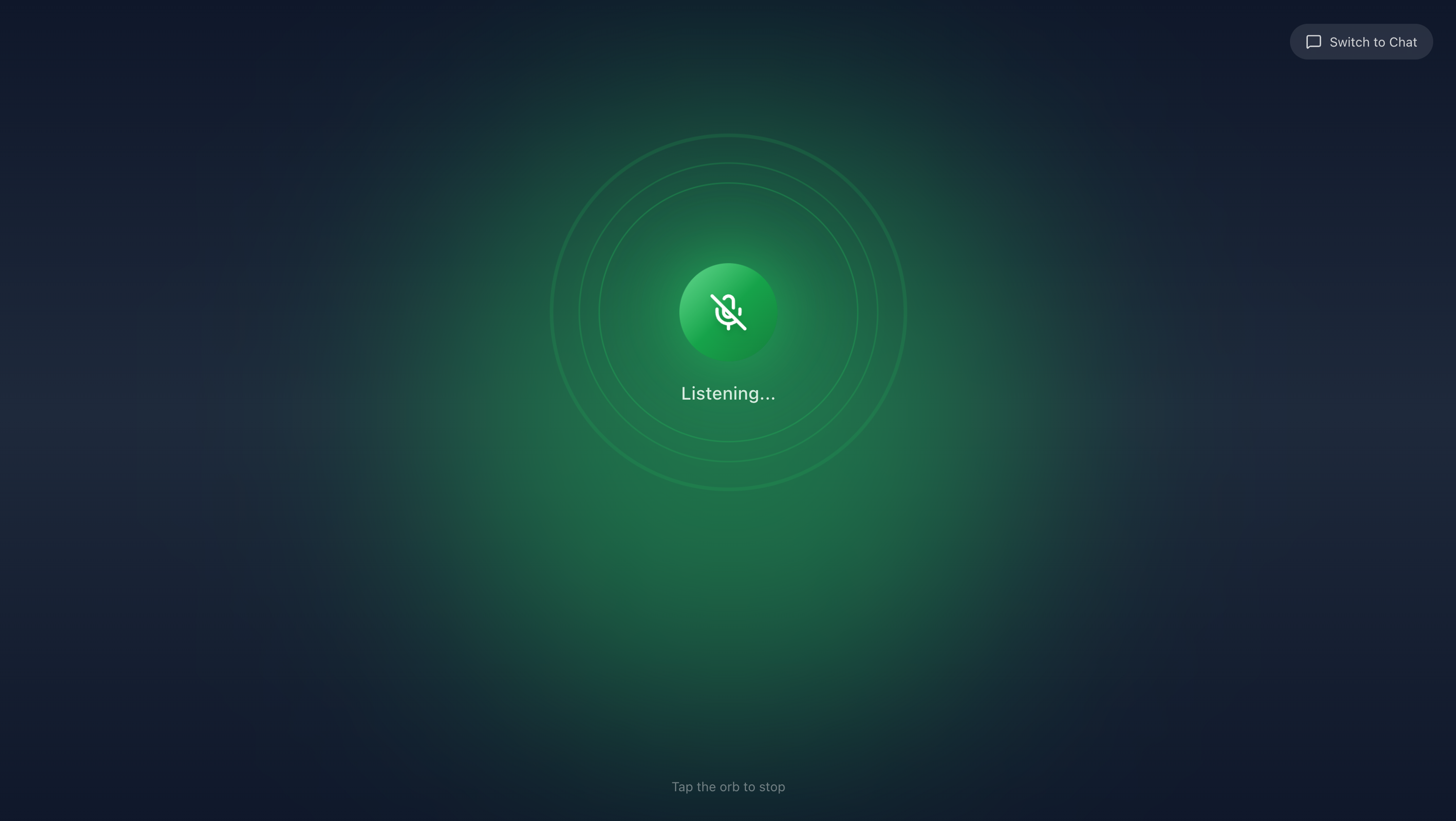
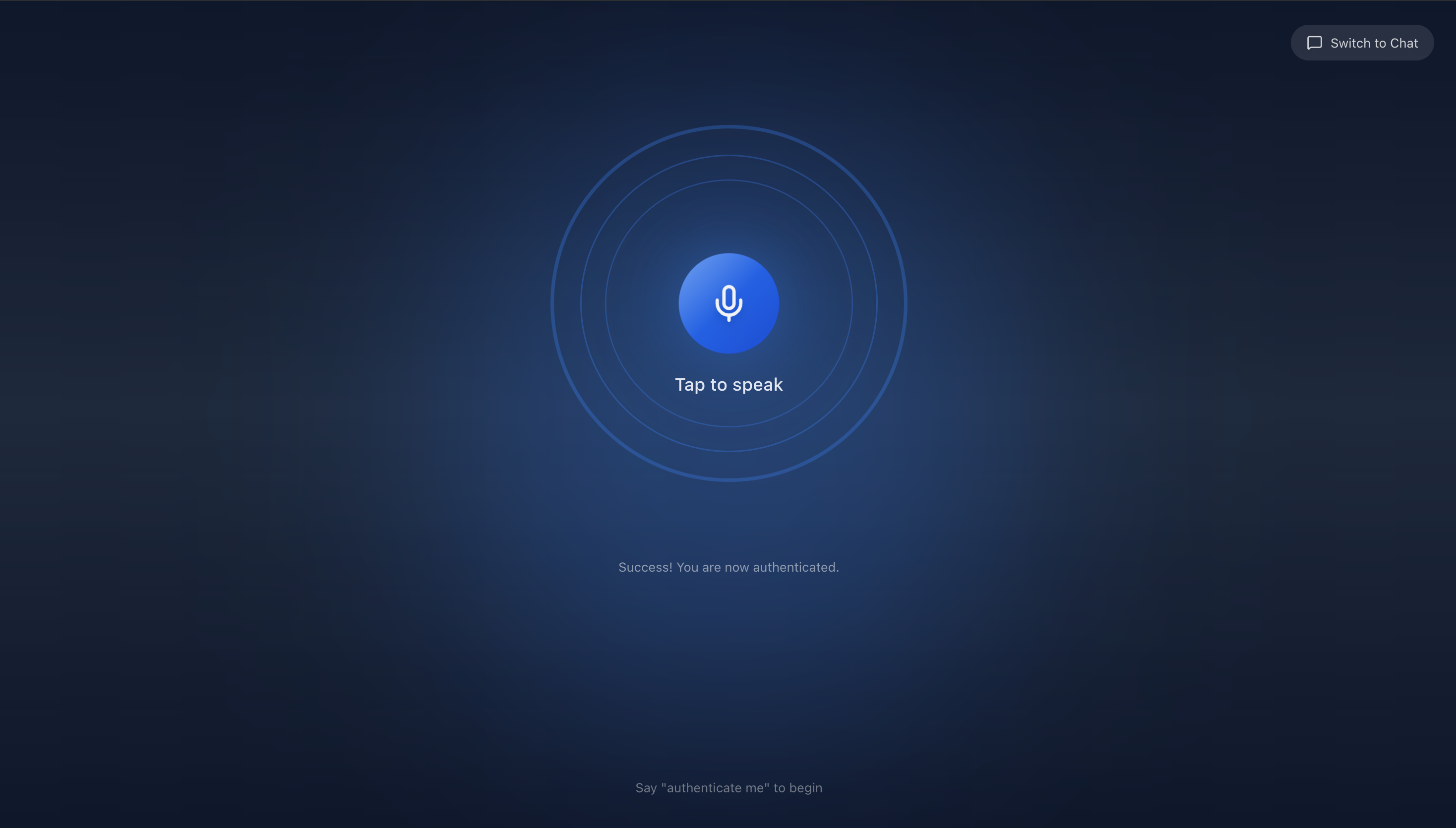
After the welcome message, click the mic button to continue talking and try voice authentication.
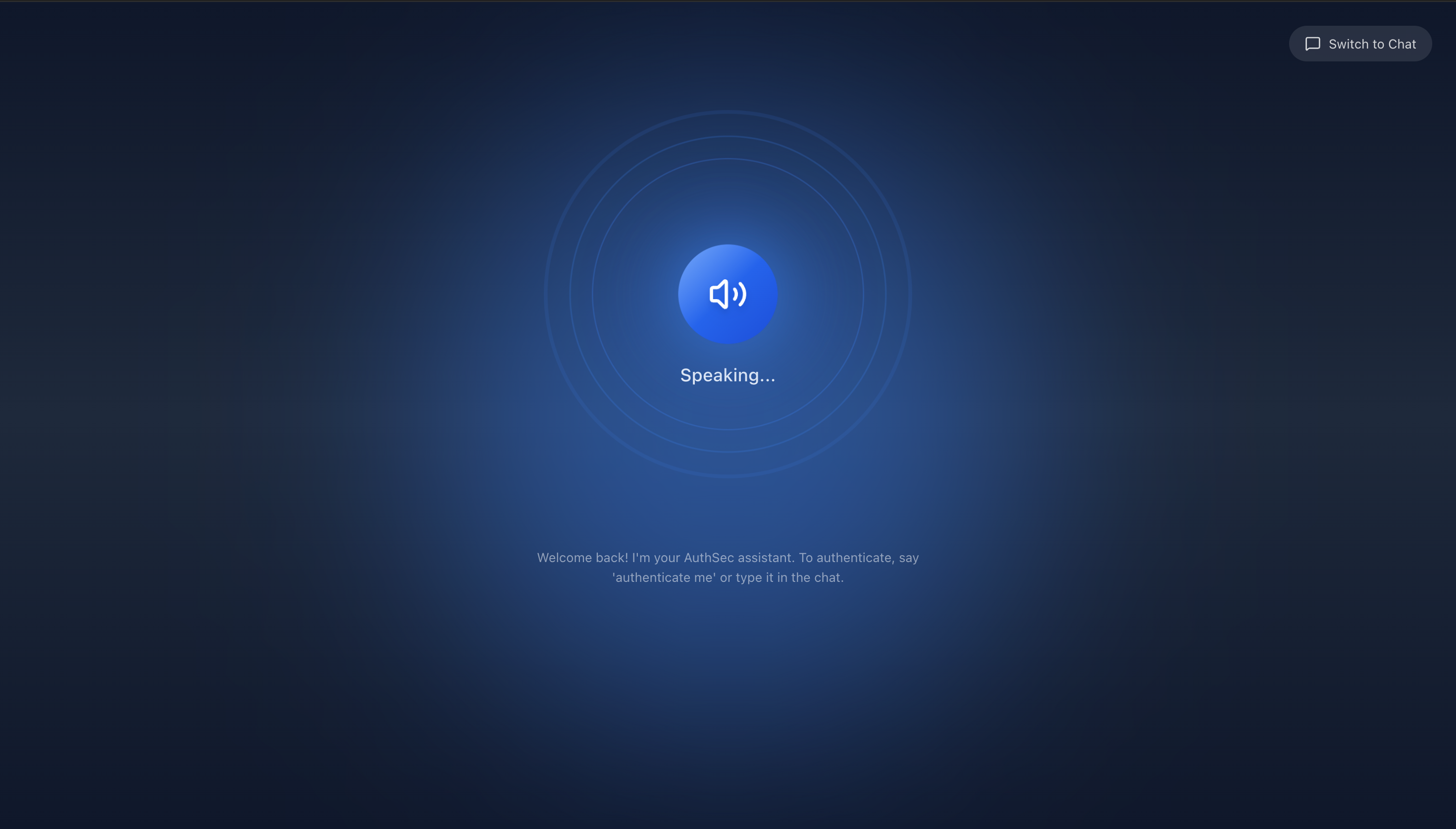
Follow the steps suggested by the AuthSec AI Agent. If app command execution fails, try saying "Use App".
You will receive a notification on your mobile device through AuthSec Authenticator. Approve it.
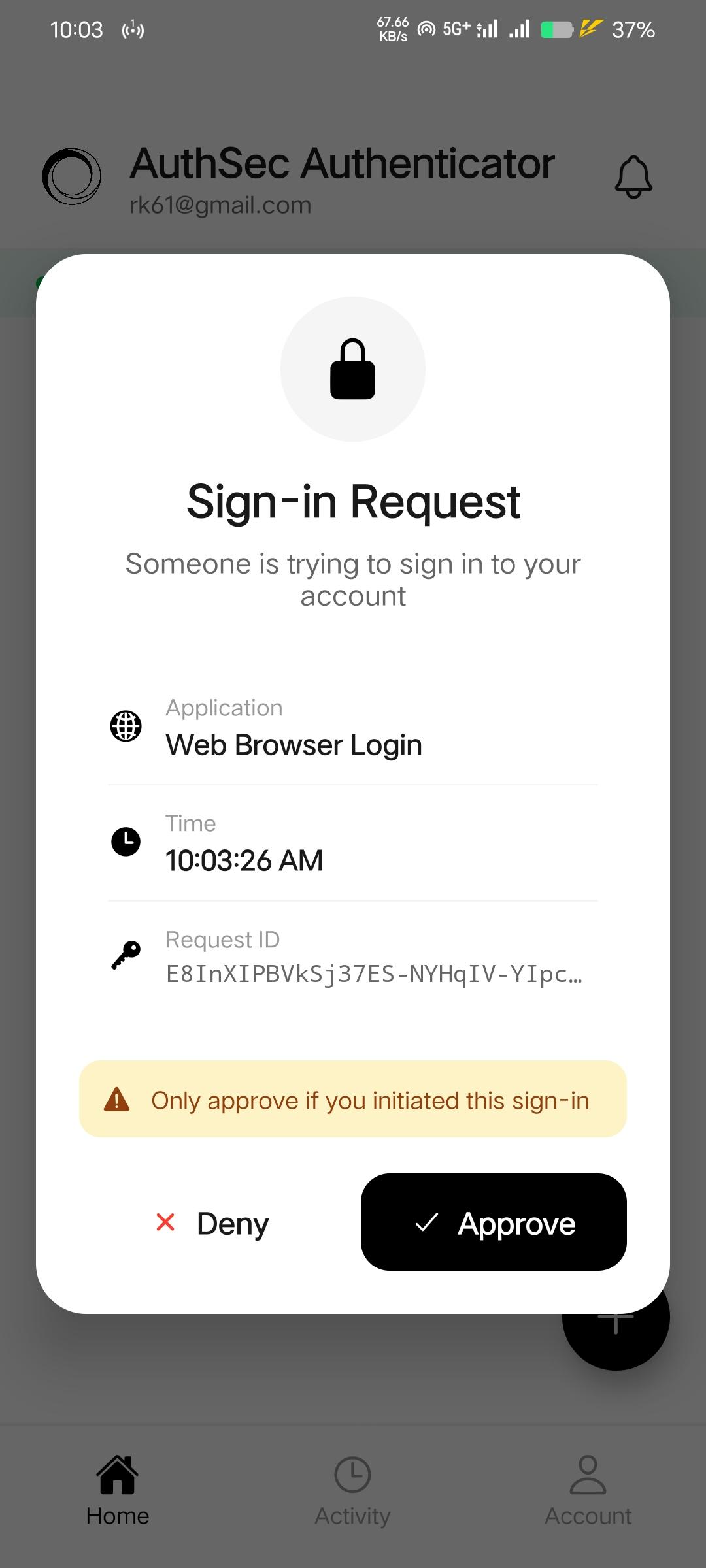
After approval, you will receive a success message from the AuthSec AI Agent.
Disclaimer
If anything fails, try saying "cancel and start fresh", or hard refresh and repeat steps 2 to 6.
Open Source
AuthSec Authenticator is open source. Clone it, extend it, and ship your own branded mobile authenticator with TOTP, CIBA push approval, and biometric unlock — all powered by the AuthSec SDK.
1 — Clone the repository
# Clone from GitHub
git clone https://github.com/authsec-ai/AuthsecAuthenticator.git
cd AuthsecAuthenticator
2 — Install dependencies
npm install3 — Start Expo dev server
npx expo startPress i for iOS Simulator, a for Android emulator, or scan the QR code with Expo Go.
4 — Configure push notifications (Android)
For Android push notifications, add your google-services.json from Firebase Console to the project root. iOS uses APNs directly — no Firebase required. See google-services.json.example for the expected structure.